Typing passwords to the computer
The most direct way to use a stored password is to let Seclave type it for you. With the device connected to a USB port, Seclave acts as a keyboard: it sends the characters of your username and password into whatever window has the cursor, just as if you had typed them. Nothing needs to be installed on the computer.
Sending an entry
Connect the Seclave to the computer with the USB cable.
On the computer, click into the field you want to fill (for example the password box of a login form).
On the Seclave, find the entry (see Finding and using an entry), choose it, and select Send to usb.
Choose a sending style (below). Seclave types the entry into the computer.
If the device is not connected to a computer when you try to send, it shows Not connected to the computer! and does nothing.

Sending without a USB connection does nothing but show this message.
Note
Seclave types into whichever field currently has focus on the computer. Make sure the right field is selected before you send, and do not switch windows while it is typing.
Sending styles
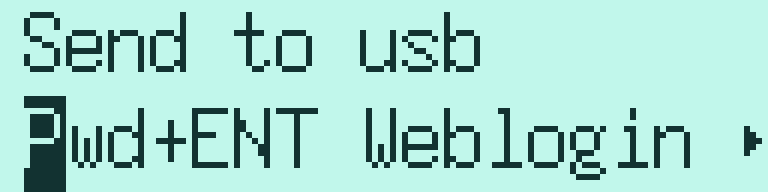
The Send to usb menu of sending styles.
The Send to usb menu offers several styles so you can match how the login form or program expects its input:
Pwd+ENT - types the password and then presses Enter. Good for a form where the password is the only thing left to fill and Enter submits it.
Weblogin - types the username, presses Tab to move to the next field, types the password, and presses Enter. Suited to a typical web login form with the username and password fields one after another.
Syslogin - types the username, presses Enter, types the password, and presses Enter. Suited to logins that ask for the username and the password on separate lines, such as a terminal or console login.
Password - types only the password, with no Enter afterwards.
Username - types only the username.
Optional - types only the Optional field.
Seclave remembers the style you last used for each entry and pre-selects it next time, so a login you use often is one press away from being typed correctly.
Choosing the keyboard layout
Because Seclave sends key presses rather than finished text, it has to match the keyboard layout the computer is set to; otherwise some characters - often punctuation used in passwords - can come out wrong. You set this in the main-menu Keyboard menu (the same settings also appear under Admin).
The Keyboard menu has three items:
Normal - choose this for Windows, Linux and most other computers.
Mac - choose this if you are typing into an Apple Mac, which handles some keys differently.
Keyboard map - choose the layout that matches the computer’s keyboard: Swedish, English (US), English (UK), German, Norwegian, Danish, German (Switzerland), French (Switzerland) or French. (In Mac mode a Swedish (PRO) layout is also offered.)
Note
Set the layout to match the layout the computer is using, not the printing on the Seclave. If typed passwords contain wrong characters, the layout or the Normal/Mac setting is usually the cause.