Usb slave
When you choose Usb slave from the main menu, Seclave presents a “virtual serial port” to the connected computer. A program on the computer can then send commands to look up and store entries, while Seclave stays in control of what is allowed.

The device in Usb slave mode, waiting for the computer. Move up to leave.
Leave the mode by moving the joystick up; the port then disappears from the computer.
How much you are asked to confirm depends on the access level, which you set in Admin -> Slave security (see Admin). This lets you trade convenience against caution to suit the situation.
Access levels
Ask all
Every operation must be confirmed on the Seclave: the device shows what the computer is asking for and waits for you to press the joystick to allow it (move up to refuse). Nothing happens without your approval.

The computer asked to add an entry; press the joystick to allow, move up to refuse.
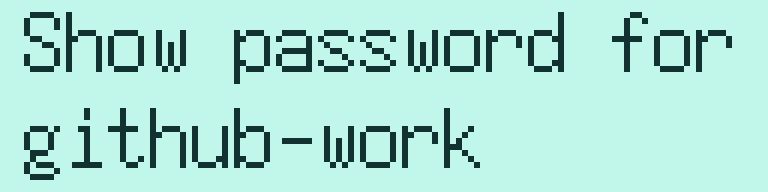
The computer asked to read a password. Nothing is sent until you approve.
Normal
The default. The computer may read and add web passwords (see below) without asking you each time. Every other operation still shows a confirmation request on the device that you must approve.
Allow all
Every operation is allowed without any confirmation. In effect this lets the computer see all your passwords. Use it only in situations where you fully trust the computer and can accept the risk.
Warning
Allow all removes all on-device confirmation. Anything running on the connected computer can read or change every entry while this mode is active. Prefer Normal or Ask all for day-to-day use.
Web passwords
A small class of entries, called web passwords, are handled differently for access control. They are ordinary entries kept in a special group named wwwfill, and they appear on the device just like any other entry.
A web password has a domain, a username and a password:
The domain (for example
example.com) is stored in the entry’s Optional field. This is what the computer looks the entry up by.The label is built automatically from the first part of the domain - up to the first 13 characters - followed by three extra characters that keep the label unique. You do not type the label yourself.
One domain can have several username/password pairs.
Because the label is generated for you, web passwords are normally created and used through the computer connection rather than typed in by hand. In Normal access level, reading and adding web passwords is the one thing the computer may do without a per-operation confirmation on the device, which is what makes browser-style autofill practical. All other operations - including deleting a web password or listing them all - still ask for your confirmation.
Note
For developers building a program that talks to Seclave over the Usb slave connection, the full command protocol is documented in Developer Integration Guide.